> ## Documentation Index
> Fetch the complete documentation index at: https://docs-dev-feat-update-styling-docs-for-universal-components.mintlify.site/llms.txt
> Use this file to discover all available pages before exploring further.

> Learn how to configure a progressive profile form using Forms for Actions

# Use Cases: Configure a progressive profile form using Forms

<Card title="Before you start">
  1. Create a [Machine-to-Machine Application](/docs/get-started/auth0-overview/create-applications/machine-to-machine-apps) with the following scopes enabled:

  * `read:users`
  * `update:users`
  * `create:users`
  * `read:users_app_metadata`
  * `update:users_app_metadata`
  * `create:users_app_metadata`

  2. Add a [Vault connection](/docs/customize/forms/vault) using the M2M application credentials.
</Card>

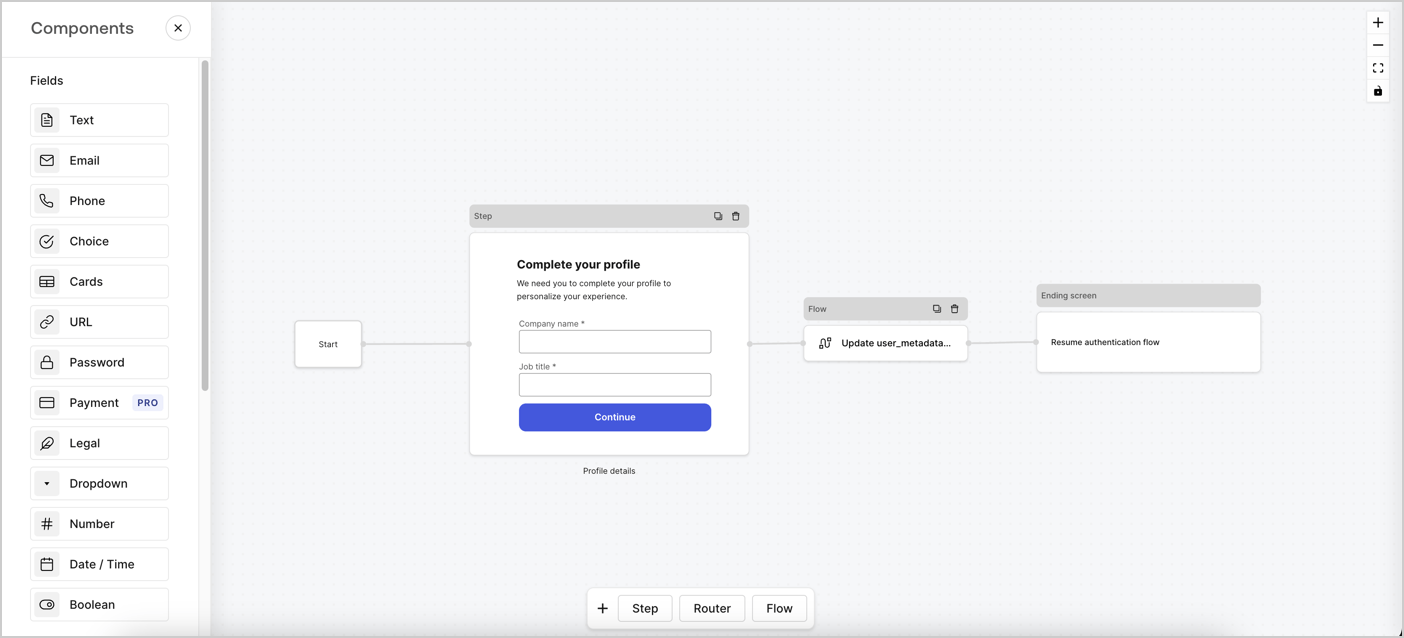
Forms for Actions allows you to create progressive profiling flows to decide when to prompt users to collect missing information, such as company name and job title, and store them as `user_metadata` attributes.
<Frame>
  <img src="https://mintcdn.com/docs-dev-feat-update-styling-docs-for-universal-components/lpTpGPc1qcZmBPU4/docs/images/cdy7uua7fh8z/xUx9YmnHvnAqL19JvNtNP/60dae88f893d4ebe8e3523421e960596/Progressive-profle-overview.png?fit=max&auto=format&n=lpTpGPc1qcZmBPU4&q=85&s=2b083e70f2a99868ce6b0f69eaecea28" alt="Dashboard > Actions > Forms > Form" data-og-width="1404" width="1404" data-og-height="638" height="638" data-path="docs/images/cdy7uua7fh8z/xUx9YmnHvnAqL19JvNtNP/60dae88f893d4ebe8e3523421e960596/Progressive-profle-overview.png" data-optimize="true" data-opv="3" srcset="https://mintcdn.com/docs-dev-feat-update-styling-docs-for-universal-components/lpTpGPc1qcZmBPU4/docs/images/cdy7uua7fh8z/xUx9YmnHvnAqL19JvNtNP/60dae88f893d4ebe8e3523421e960596/Progressive-profle-overview.png?w=280&fit=max&auto=format&n=lpTpGPc1qcZmBPU4&q=85&s=8e2b618d8216e9d357ab3107688bd175 280w, https://mintcdn.com/docs-dev-feat-update-styling-docs-for-universal-components/lpTpGPc1qcZmBPU4/docs/images/cdy7uua7fh8z/xUx9YmnHvnAqL19JvNtNP/60dae88f893d4ebe8e3523421e960596/Progressive-profle-overview.png?w=560&fit=max&auto=format&n=lpTpGPc1qcZmBPU4&q=85&s=c1d94c2243cbf18fe316ca5af82ff3d7 560w, https://mintcdn.com/docs-dev-feat-update-styling-docs-for-universal-components/lpTpGPc1qcZmBPU4/docs/images/cdy7uua7fh8z/xUx9YmnHvnAqL19JvNtNP/60dae88f893d4ebe8e3523421e960596/Progressive-profle-overview.png?w=840&fit=max&auto=format&n=lpTpGPc1qcZmBPU4&q=85&s=ccf51ef25e8aa44583be0d888663eb4a 840w, https://mintcdn.com/docs-dev-feat-update-styling-docs-for-universal-components/lpTpGPc1qcZmBPU4/docs/images/cdy7uua7fh8z/xUx9YmnHvnAqL19JvNtNP/60dae88f893d4ebe8e3523421e960596/Progressive-profle-overview.png?w=1100&fit=max&auto=format&n=lpTpGPc1qcZmBPU4&q=85&s=3442a77e2b3b910c61ec3302d1edcb6e 1100w, https://mintcdn.com/docs-dev-feat-update-styling-docs-for-universal-components/lpTpGPc1qcZmBPU4/docs/images/cdy7uua7fh8z/xUx9YmnHvnAqL19JvNtNP/60dae88f893d4ebe8e3523421e960596/Progressive-profle-overview.png?w=1650&fit=max&auto=format&n=lpTpGPc1qcZmBPU4&q=85&s=65bdeef2db2265bb8532ca3613997d4e 1650w, https://mintcdn.com/docs-dev-feat-update-styling-docs-for-universal-components/lpTpGPc1qcZmBPU4/docs/images/cdy7uua7fh8z/xUx9YmnHvnAqL19JvNtNP/60dae88f893d4ebe8e3523421e960596/Progressive-profle-overview.png?w=2500&fit=max&auto=format&n=lpTpGPc1qcZmBPU4&q=85&s=9da95c93adf74e7e446ca466e0efe404 2500w" />
</Frame>

The sections below outline how you can create a progressive profile form using nodes and flows, along with steps for adding your form to a [Post Login Action](/docs/customize/actions/explore-triggers/signup-and-login-triggers/login-trigger).

## Create a form from scratch

Follow these steps to create a form to gather information:

1. Open the Form editor by selecting **Auth0 Dashboard > Actions > Forms.**
2. Select **Create Form** > **Start from scratch**.

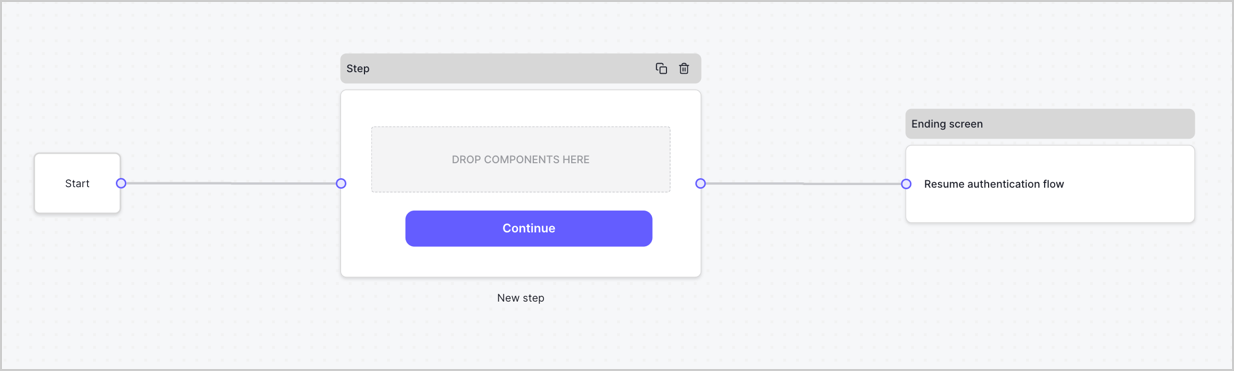
By default, a new form contains a Start node, a Step node, and an Ending screen node.
<Frame>
  <img src="https://mintcdn.com/docs-dev-feat-update-styling-docs-for-universal-components/NIH7s0RqLV85rVO2/docs/images/cdy7uua7fh8z/2TZ9jSjgEcARFpULI6hz4R/a4319a1bd482f2ee5cc23100fdb2f42c/New-form-Forms-for-action-use-case.png?fit=max&auto=format&n=NIH7s0RqLV85rVO2&q=85&s=0081335a1a386163a3afd0aaae72fd1b" alt="Dashboard > Forms > Use Cases > Form" data-og-width="1234" width="1234" data-og-height="371" height="371" data-path="docs/images/cdy7uua7fh8z/2TZ9jSjgEcARFpULI6hz4R/a4319a1bd482f2ee5cc23100fdb2f42c/New-form-Forms-for-action-use-case.png" data-optimize="true" data-opv="3" srcset="https://mintcdn.com/docs-dev-feat-update-styling-docs-for-universal-components/NIH7s0RqLV85rVO2/docs/images/cdy7uua7fh8z/2TZ9jSjgEcARFpULI6hz4R/a4319a1bd482f2ee5cc23100fdb2f42c/New-form-Forms-for-action-use-case.png?w=280&fit=max&auto=format&n=NIH7s0RqLV85rVO2&q=85&s=7c0f7838041b730b0332b28311985d7d 280w, https://mintcdn.com/docs-dev-feat-update-styling-docs-for-universal-components/NIH7s0RqLV85rVO2/docs/images/cdy7uua7fh8z/2TZ9jSjgEcARFpULI6hz4R/a4319a1bd482f2ee5cc23100fdb2f42c/New-form-Forms-for-action-use-case.png?w=560&fit=max&auto=format&n=NIH7s0RqLV85rVO2&q=85&s=b91084454affaeff1ee366291e460eca 560w, https://mintcdn.com/docs-dev-feat-update-styling-docs-for-universal-components/NIH7s0RqLV85rVO2/docs/images/cdy7uua7fh8z/2TZ9jSjgEcARFpULI6hz4R/a4319a1bd482f2ee5cc23100fdb2f42c/New-form-Forms-for-action-use-case.png?w=840&fit=max&auto=format&n=NIH7s0RqLV85rVO2&q=85&s=e4cc85ac84925ec33f6d4fd8db9a3d6f 840w, https://mintcdn.com/docs-dev-feat-update-styling-docs-for-universal-components/NIH7s0RqLV85rVO2/docs/images/cdy7uua7fh8z/2TZ9jSjgEcARFpULI6hz4R/a4319a1bd482f2ee5cc23100fdb2f42c/New-form-Forms-for-action-use-case.png?w=1100&fit=max&auto=format&n=NIH7s0RqLV85rVO2&q=85&s=2776307a44e24788c10588a862059a11 1100w, https://mintcdn.com/docs-dev-feat-update-styling-docs-for-universal-components/NIH7s0RqLV85rVO2/docs/images/cdy7uua7fh8z/2TZ9jSjgEcARFpULI6hz4R/a4319a1bd482f2ee5cc23100fdb2f42c/New-form-Forms-for-action-use-case.png?w=1650&fit=max&auto=format&n=NIH7s0RqLV85rVO2&q=85&s=91c27244070be6c9addf01f56d9f7ef7 1650w, https://mintcdn.com/docs-dev-feat-update-styling-docs-for-universal-components/NIH7s0RqLV85rVO2/docs/images/cdy7uua7fh8z/2TZ9jSjgEcARFpULI6hz4R/a4319a1bd482f2ee5cc23100fdb2f42c/New-form-Forms-for-action-use-case.png?w=2500&fit=max&auto=format&n=NIH7s0RqLV85rVO2&q=85&s=48a1361138cd3c05e00c76e004b70adf 2500w" />
</Frame>

### Configure the Step node

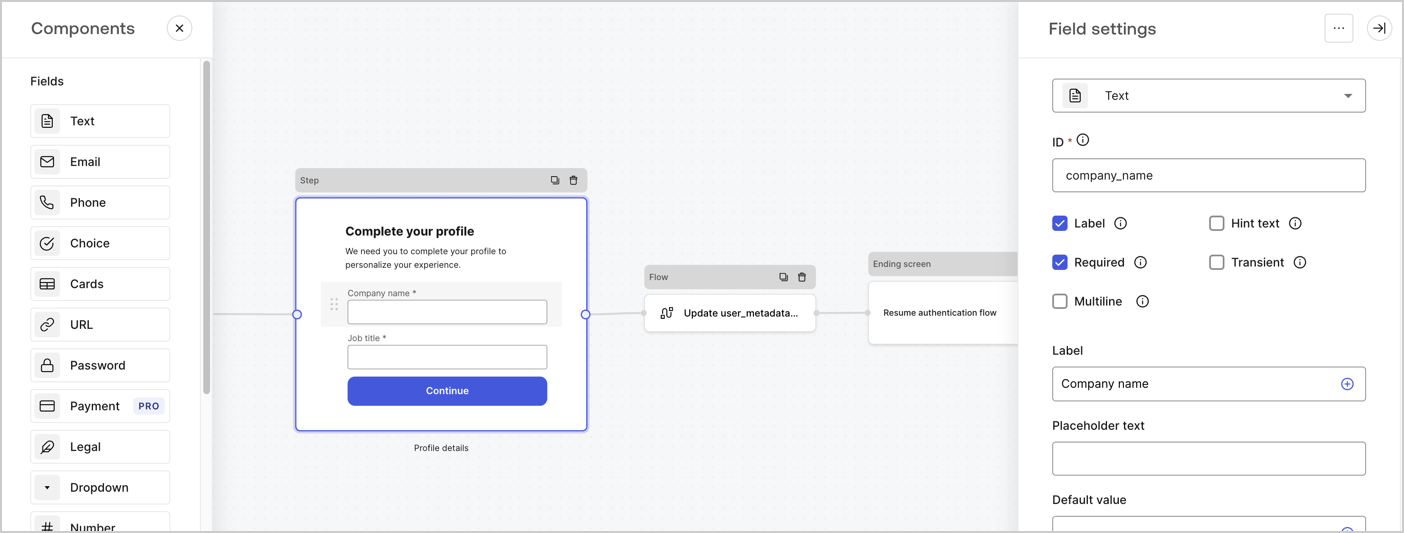
The Step node is the graphical interface visible to users. Add [Fields](/docs/customize/forms/nodes-and-components) to the Step node to collect the user's company name and job title values by following these steps:

1. Drag a **Rich text** field from the **Components menu** into the **Step** node.

   * **Rich text**: Enter a custom message.

     * **Example**: `Complete your profile! We need you to complete your profile to personalize your experience.`
   * Select **Save**.
2. Drag a **Text** field into the **Step** node.

   * **ID**: Enter `company_name`.
   * **Label**: Enable the checkbox.
   * **Label**: Enter `Company name`.
   * **Required**: Enable the checkbox.
   * Select **Save**.
3. Drag a **Text** field into the **Step** node.

   1. **ID**: Enter `job_title`.
   2. **Label**: Enter `Job title`.
   3. **Label**: Enable the checkbox.
   4. **Required**: Enable the checkbox.
   5. Select **Save**.
4. Select **Publish** to save.
<Frame>
  <img src="https://mintcdn.com/docs-dev-feat-update-styling-docs-for-universal-components/aryv-85zS-Myv9K1/docs/images/cdy7uua7fh8z/6H1lRzwKyYioQyQJ9MtIoM/aa248e92fc028a68a5b92ff361a11644/progressive-profile-step.png?fit=max&auto=format&n=aryv-85zS-Myv9K1&q=85&s=62b176066e9681415e40c09180cbe794" alt="Dashboard > Actions > Forms > Form > Step node" data-og-width="1404" width="1404" data-og-height="533" height="533" data-path="docs/images/cdy7uua7fh8z/6H1lRzwKyYioQyQJ9MtIoM/aa248e92fc028a68a5b92ff361a11644/progressive-profile-step.png" data-optimize="true" data-opv="3" srcset="https://mintcdn.com/docs-dev-feat-update-styling-docs-for-universal-components/aryv-85zS-Myv9K1/docs/images/cdy7uua7fh8z/6H1lRzwKyYioQyQJ9MtIoM/aa248e92fc028a68a5b92ff361a11644/progressive-profile-step.png?w=280&fit=max&auto=format&n=aryv-85zS-Myv9K1&q=85&s=2418411944f6a7bd530ee717953940cd 280w, https://mintcdn.com/docs-dev-feat-update-styling-docs-for-universal-components/aryv-85zS-Myv9K1/docs/images/cdy7uua7fh8z/6H1lRzwKyYioQyQJ9MtIoM/aa248e92fc028a68a5b92ff361a11644/progressive-profile-step.png?w=560&fit=max&auto=format&n=aryv-85zS-Myv9K1&q=85&s=7dca788bd8f03cec9edc6ee2b54928ff 560w, https://mintcdn.com/docs-dev-feat-update-styling-docs-for-universal-components/aryv-85zS-Myv9K1/docs/images/cdy7uua7fh8z/6H1lRzwKyYioQyQJ9MtIoM/aa248e92fc028a68a5b92ff361a11644/progressive-profile-step.png?w=840&fit=max&auto=format&n=aryv-85zS-Myv9K1&q=85&s=7fc5e196498ec60dbde028fbc291d482 840w, https://mintcdn.com/docs-dev-feat-update-styling-docs-for-universal-components/aryv-85zS-Myv9K1/docs/images/cdy7uua7fh8z/6H1lRzwKyYioQyQJ9MtIoM/aa248e92fc028a68a5b92ff361a11644/progressive-profile-step.png?w=1100&fit=max&auto=format&n=aryv-85zS-Myv9K1&q=85&s=31bc222ad3d89456064980347b654b1d 1100w, https://mintcdn.com/docs-dev-feat-update-styling-docs-for-universal-components/aryv-85zS-Myv9K1/docs/images/cdy7uua7fh8z/6H1lRzwKyYioQyQJ9MtIoM/aa248e92fc028a68a5b92ff361a11644/progressive-profile-step.png?w=1650&fit=max&auto=format&n=aryv-85zS-Myv9K1&q=85&s=710d1e126ca932f34d79f443a39dcd99 1650w, https://mintcdn.com/docs-dev-feat-update-styling-docs-for-universal-components/aryv-85zS-Myv9K1/docs/images/cdy7uua7fh8z/6H1lRzwKyYioQyQJ9MtIoM/aa248e92fc028a68a5b92ff361a11644/progressive-profile-step.png?w=2500&fit=max&auto=format&n=aryv-85zS-Myv9K1&q=85&s=5bde15cbd2a2e29ccc132918b434ad79 2500w" />
</Frame>

### Configure the flow node

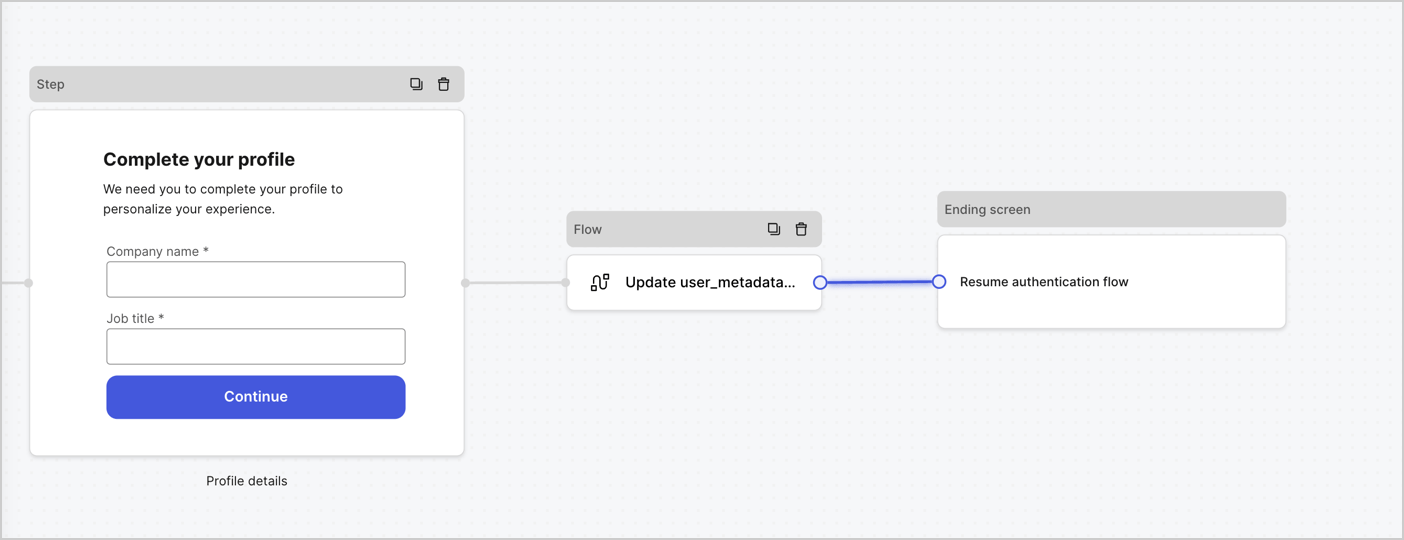
Add a **Flow** node after the **Step** node to update the `user_metadata` and resume the authentication flow by following these steps:

1. Select **Flow** from the bottom of the Form editor.
2. Remove the existing link between the **Step** and **Ending Screen** nodes.
3. Select the new **Flow** > **Click to add a flow** > **Create a new flow.**

   * Enter `Update user_metadata` in the **Name** field.
   * Select **Create**.
   * Select **Save**.
4. Link the **Flow** node to the **Step** and **Ending Screen** nodes as pictured below.
5. Select **Publish** to save.
<Frame>
  <img src="https://mintcdn.com/docs-dev-feat-update-styling-docs-for-universal-components/u4mR4nqMTYhARK7E/docs/images/cdy7uua7fh8z/5C91DaWn4LGtJT9BF87ssu/095171d0c452a287c44bfde12fd6d13f/link-nodes.png?fit=max&auto=format&n=u4mR4nqMTYhARK7E&q=85&s=7ba5f535853b409f3a26a3da8a3c29b3" alt="Dashboard > Actions > Forms > Form" data-og-width="1404" width="1404" data-og-height="540" height="540" data-path="docs/images/cdy7uua7fh8z/5C91DaWn4LGtJT9BF87ssu/095171d0c452a287c44bfde12fd6d13f/link-nodes.png" data-optimize="true" data-opv="3" srcset="https://mintcdn.com/docs-dev-feat-update-styling-docs-for-universal-components/u4mR4nqMTYhARK7E/docs/images/cdy7uua7fh8z/5C91DaWn4LGtJT9BF87ssu/095171d0c452a287c44bfde12fd6d13f/link-nodes.png?w=280&fit=max&auto=format&n=u4mR4nqMTYhARK7E&q=85&s=9604dd3d7fb64ece3b6fd76fa0d4f7d3 280w, https://mintcdn.com/docs-dev-feat-update-styling-docs-for-universal-components/u4mR4nqMTYhARK7E/docs/images/cdy7uua7fh8z/5C91DaWn4LGtJT9BF87ssu/095171d0c452a287c44bfde12fd6d13f/link-nodes.png?w=560&fit=max&auto=format&n=u4mR4nqMTYhARK7E&q=85&s=cdebab557c796c113d7ad4e232d7d8f4 560w, https://mintcdn.com/docs-dev-feat-update-styling-docs-for-universal-components/u4mR4nqMTYhARK7E/docs/images/cdy7uua7fh8z/5C91DaWn4LGtJT9BF87ssu/095171d0c452a287c44bfde12fd6d13f/link-nodes.png?w=840&fit=max&auto=format&n=u4mR4nqMTYhARK7E&q=85&s=9988da0c9fd47179127282e79d3298f0 840w, https://mintcdn.com/docs-dev-feat-update-styling-docs-for-universal-components/u4mR4nqMTYhARK7E/docs/images/cdy7uua7fh8z/5C91DaWn4LGtJT9BF87ssu/095171d0c452a287c44bfde12fd6d13f/link-nodes.png?w=1100&fit=max&auto=format&n=u4mR4nqMTYhARK7E&q=85&s=0fabd6eeb9678aa420913a32bb12ac1b 1100w, https://mintcdn.com/docs-dev-feat-update-styling-docs-for-universal-components/u4mR4nqMTYhARK7E/docs/images/cdy7uua7fh8z/5C91DaWn4LGtJT9BF87ssu/095171d0c452a287c44bfde12fd6d13f/link-nodes.png?w=1650&fit=max&auto=format&n=u4mR4nqMTYhARK7E&q=85&s=3a300de151acea388f976922455a414b 1650w, https://mintcdn.com/docs-dev-feat-update-styling-docs-for-universal-components/u4mR4nqMTYhARK7E/docs/images/cdy7uua7fh8z/5C91DaWn4LGtJT9BF87ssu/095171d0c452a287c44bfde12fd6d13f/link-nodes.png?w=2500&fit=max&auto=format&n=u4mR4nqMTYhARK7E&q=85&s=714cb09072087df4d58a3b9be4b502da 2500w" />
</Frame>

Add an Auth0 Update user action to the flow by following these steps:

1. Select the **Update user\_metadata** flow, then select the **Edit Flow** to open the Flow editor in a new tab.
2. Below the **Start** action, select the **+** icon to add an **Update user** action. Complete the fields below, then select **Save** to continue.

   * **Connection**: Select from the dropdown the Vault connection to your M2M application.

   * **User ID**: Enter `{{context.user.user_id}}`.

   * **Body**: Copy and paste the following code to update the user\_metadata with `job_title` and `company_name` properties.

     ```json lines theme={null}
     {
        "user_metadata": {
           "job_title": "{{fields.job_title}}",
           "company_name": "{{fields.company_name}}"
        }
     }
     ```

   * Select **Save**.
3. Select **Publish** to save.

<Frame>
  <img src="https://mintcdn.com/docs-dev-feat-update-styling-docs-for-universal-components/48yZN0m6i0xDoCD1/docs/images/cdy7uua7fh8z/65Jx4W5oIZJyyvA8z4HqIx/0661b1a8ca6361c54fc4fef07ba59f0b/update-user.png?fit=max&auto=format&n=48yZN0m6i0xDoCD1&q=85&s=9ea6fd8e66a8faf2d968c8134313f28d" alt="Dashboard > Actions > Forms > Flows" data-og-width="1404" width="1404" data-og-height="244" height="244" data-path="docs/images/cdy7uua7fh8z/65Jx4W5oIZJyyvA8z4HqIx/0661b1a8ca6361c54fc4fef07ba59f0b/update-user.png" data-optimize="true" data-opv="3" srcset="https://mintcdn.com/docs-dev-feat-update-styling-docs-for-universal-components/48yZN0m6i0xDoCD1/docs/images/cdy7uua7fh8z/65Jx4W5oIZJyyvA8z4HqIx/0661b1a8ca6361c54fc4fef07ba59f0b/update-user.png?w=280&fit=max&auto=format&n=48yZN0m6i0xDoCD1&q=85&s=233faa87038ca4060946bea954324946 280w, https://mintcdn.com/docs-dev-feat-update-styling-docs-for-universal-components/48yZN0m6i0xDoCD1/docs/images/cdy7uua7fh8z/65Jx4W5oIZJyyvA8z4HqIx/0661b1a8ca6361c54fc4fef07ba59f0b/update-user.png?w=560&fit=max&auto=format&n=48yZN0m6i0xDoCD1&q=85&s=8916b0b1642fd49cd9e3f2cc0bdd4642 560w, https://mintcdn.com/docs-dev-feat-update-styling-docs-for-universal-components/48yZN0m6i0xDoCD1/docs/images/cdy7uua7fh8z/65Jx4W5oIZJyyvA8z4HqIx/0661b1a8ca6361c54fc4fef07ba59f0b/update-user.png?w=840&fit=max&auto=format&n=48yZN0m6i0xDoCD1&q=85&s=912d9c443126fc6aabf03079a1205787 840w, https://mintcdn.com/docs-dev-feat-update-styling-docs-for-universal-components/48yZN0m6i0xDoCD1/docs/images/cdy7uua7fh8z/65Jx4W5oIZJyyvA8z4HqIx/0661b1a8ca6361c54fc4fef07ba59f0b/update-user.png?w=1100&fit=max&auto=format&n=48yZN0m6i0xDoCD1&q=85&s=7e4454ec35166f570c905068115ab90f 1100w, https://mintcdn.com/docs-dev-feat-update-styling-docs-for-universal-components/48yZN0m6i0xDoCD1/docs/images/cdy7uua7fh8z/65Jx4W5oIZJyyvA8z4HqIx/0661b1a8ca6361c54fc4fef07ba59f0b/update-user.png?w=1650&fit=max&auto=format&n=48yZN0m6i0xDoCD1&q=85&s=975c1b2248718e2fa4d19d61b40264bd 1650w, https://mintcdn.com/docs-dev-feat-update-styling-docs-for-universal-components/48yZN0m6i0xDoCD1/docs/images/cdy7uua7fh8z/65Jx4W5oIZJyyvA8z4HqIx/0661b1a8ca6361c54fc4fef07ba59f0b/update-user.png?w=2500&fit=max&auto=format&n=48yZN0m6i0xDoCD1&q=85&s=af31dd40cbec3a653fb46df4f67f3ee4 2500w" />
</Frame>

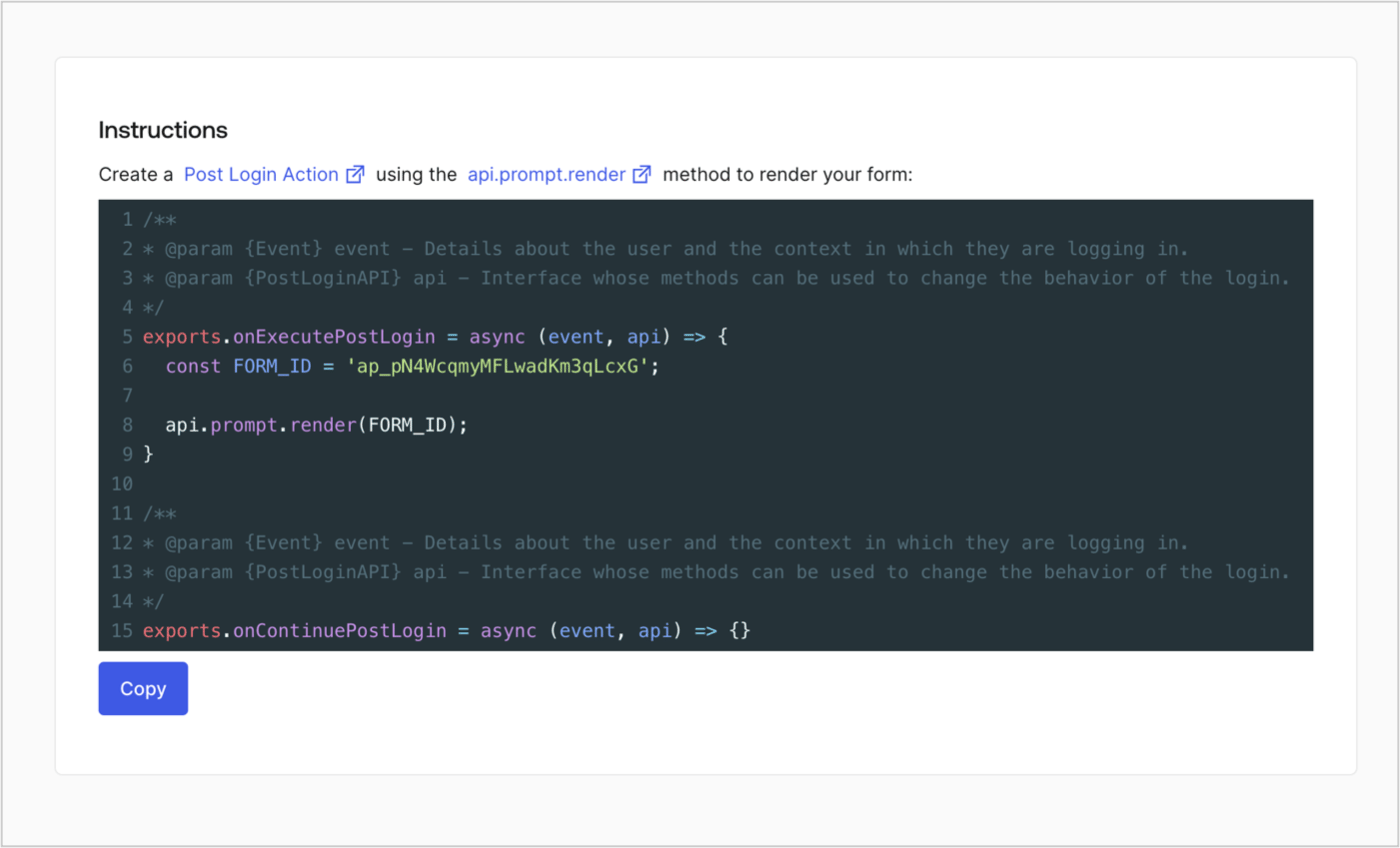
### Retrieve the form render code

Retrieve the form render code to visually render the form with a custom Post Login Action by following these steps:

* From the Form editor, select **`<> Render`**.
* Select **Copy**.
<Frame>
  <img src="https://mintcdn.com/docs-dev-feat-update-styling-docs-for-universal-components/zs0clQlg6aGSeKnF/docs/images/cdy7uua7fh8z/2EIUzc539sq9lwoTKbjoJv/496a864c0fc44a782c9cadca119dbfb0/embed.png?fit=max&auto=format&n=zs0clQlg6aGSeKnF&q=85&s=4fdda266e141f2deff0daf6bb5d9fafb" alt="Dashboard > Actions > Forms > Form > Embed" data-og-width="1400" width="1400" data-og-height="848" height="848" data-path="docs/images/cdy7uua7fh8z/2EIUzc539sq9lwoTKbjoJv/496a864c0fc44a782c9cadca119dbfb0/embed.png" data-optimize="true" data-opv="3" srcset="https://mintcdn.com/docs-dev-feat-update-styling-docs-for-universal-components/zs0clQlg6aGSeKnF/docs/images/cdy7uua7fh8z/2EIUzc539sq9lwoTKbjoJv/496a864c0fc44a782c9cadca119dbfb0/embed.png?w=280&fit=max&auto=format&n=zs0clQlg6aGSeKnF&q=85&s=e9f6f7580c8ed12427be30dce2824c3f 280w, https://mintcdn.com/docs-dev-feat-update-styling-docs-for-universal-components/zs0clQlg6aGSeKnF/docs/images/cdy7uua7fh8z/2EIUzc539sq9lwoTKbjoJv/496a864c0fc44a782c9cadca119dbfb0/embed.png?w=560&fit=max&auto=format&n=zs0clQlg6aGSeKnF&q=85&s=4507a1dc618757c59c805a961d5d6d06 560w, https://mintcdn.com/docs-dev-feat-update-styling-docs-for-universal-components/zs0clQlg6aGSeKnF/docs/images/cdy7uua7fh8z/2EIUzc539sq9lwoTKbjoJv/496a864c0fc44a782c9cadca119dbfb0/embed.png?w=840&fit=max&auto=format&n=zs0clQlg6aGSeKnF&q=85&s=8005c24f5d7d585d0624f38e3adc61cb 840w, https://mintcdn.com/docs-dev-feat-update-styling-docs-for-universal-components/zs0clQlg6aGSeKnF/docs/images/cdy7uua7fh8z/2EIUzc539sq9lwoTKbjoJv/496a864c0fc44a782c9cadca119dbfb0/embed.png?w=1100&fit=max&auto=format&n=zs0clQlg6aGSeKnF&q=85&s=ec381771e4e19bb32e3f57d5512c2ac4 1100w, https://mintcdn.com/docs-dev-feat-update-styling-docs-for-universal-components/zs0clQlg6aGSeKnF/docs/images/cdy7uua7fh8z/2EIUzc539sq9lwoTKbjoJv/496a864c0fc44a782c9cadca119dbfb0/embed.png?w=1650&fit=max&auto=format&n=zs0clQlg6aGSeKnF&q=85&s=a2b431ee7487a055886f70d8c208552a 1650w, https://mintcdn.com/docs-dev-feat-update-styling-docs-for-universal-components/zs0clQlg6aGSeKnF/docs/images/cdy7uua7fh8z/2EIUzc539sq9lwoTKbjoJv/496a864c0fc44a782c9cadca119dbfb0/embed.png?w=2500&fit=max&auto=format&n=zs0clQlg6aGSeKnF&q=85&s=dfdc2abc1b801169a62850a46be558a3 2500w" />
</Frame>

## Create a Post Login Action

Create a post-login Action to render your form by following these steps:

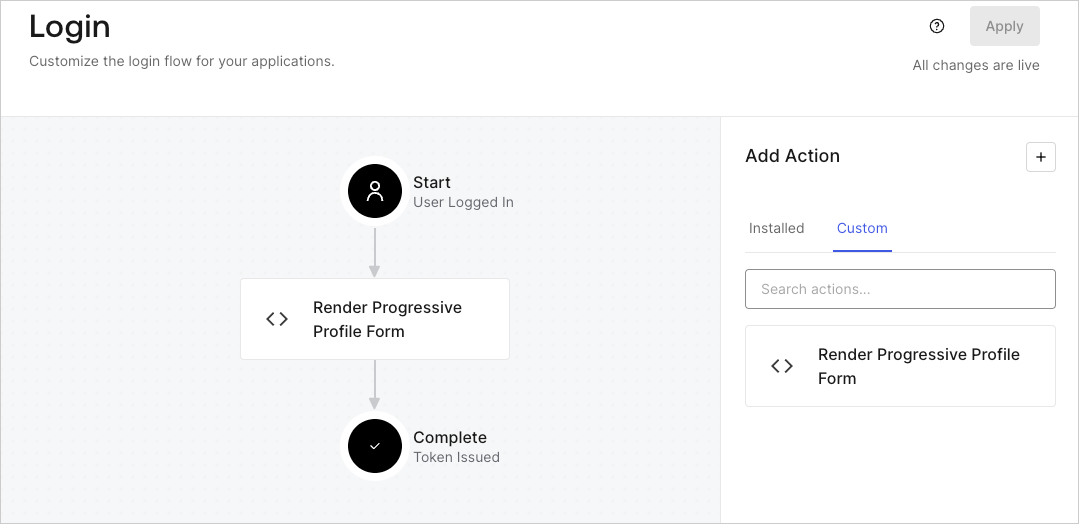
1. Navigate to **Auth0 Dashboard > Actions > Flows > Login.**
2. Select the **+** icon and select **Build from scratch**:

   * **Name**: Enter `Render Progressive Profile Form`.
   * **Trigger**: Select `Login / Post Login`.
   * **Runtime**: Select the recommended version.
3. Select **Create**.

To configure the post-login Action:

1. Delete the existing code from the Code editor.
2. Paste the form embed code into the Code editor.
3. Edit the code to define the conditional logic that will render the form.

   ```javascript lines theme={null}
   /**
   * @param {Event} event - Details about the user and the context in which they are logging in.
   * @param {PostLoginAPI} api - Interface whose methods can be used to change the behavior of the login.
   */
   exports.onExecutePostLogin = async (event, api) => {
     const FORM_ID = 'REPLACE_WITH_YOUR_FORM_ID';

     if (
       event.stats.logins_count > 2 &&
       !event.user.user_metadata.company_name &&
       !event.user.user_metadata.job_title
     ) {
       api.prompt.render(FORM_ID);
     }
   }

   exports.onContinuePostLogin = async (event, api) => { }
   ```

   <Callout icon="file-lines" color="#0EA5E9" iconType="regular">
     The example code above will render the form when a user has a login count > 2 and is missing the user metadata company\_name and job\_title properties.
   </Callout>
4. Select **Deploy.**
5. Drag and Drop the **Render Progressive Profile Form** Action to the **Login** flow.
   <Frame>
     <img src="https://mintcdn.com/docs-dev-feat-update-styling-docs-for-universal-components/fMhh96PAufTqgJWo/docs/images/cdy7uua7fh8z/1QjjZdpTqTxx012UDN4xk9/99fba5ef4068a5688f1762eea7f42976/renderprogessiveprofile.png?fit=max&auto=format&n=fMhh96PAufTqgJWo&q=85&s=8197fdb46e83edd2095e1bb863a428e5" alt="Dashboard > Forms > Use Cases Progressive Profile Login Action" data-og-width="1079" width="1079" data-og-height="524" height="524" data-path="docs/images/cdy7uua7fh8z/1QjjZdpTqTxx012UDN4xk9/99fba5ef4068a5688f1762eea7f42976/renderprogessiveprofile.png" data-optimize="true" data-opv="3" srcset="https://mintcdn.com/docs-dev-feat-update-styling-docs-for-universal-components/fMhh96PAufTqgJWo/docs/images/cdy7uua7fh8z/1QjjZdpTqTxx012UDN4xk9/99fba5ef4068a5688f1762eea7f42976/renderprogessiveprofile.png?w=280&fit=max&auto=format&n=fMhh96PAufTqgJWo&q=85&s=765e5b5b85f849b183d70cf375e8bc8b 280w, https://mintcdn.com/docs-dev-feat-update-styling-docs-for-universal-components/fMhh96PAufTqgJWo/docs/images/cdy7uua7fh8z/1QjjZdpTqTxx012UDN4xk9/99fba5ef4068a5688f1762eea7f42976/renderprogessiveprofile.png?w=560&fit=max&auto=format&n=fMhh96PAufTqgJWo&q=85&s=8d9bbd43d285f53d85b3e43df92a6896 560w, https://mintcdn.com/docs-dev-feat-update-styling-docs-for-universal-components/fMhh96PAufTqgJWo/docs/images/cdy7uua7fh8z/1QjjZdpTqTxx012UDN4xk9/99fba5ef4068a5688f1762eea7f42976/renderprogessiveprofile.png?w=840&fit=max&auto=format&n=fMhh96PAufTqgJWo&q=85&s=9420c39bf23c030e980586087a4e465a 840w, https://mintcdn.com/docs-dev-feat-update-styling-docs-for-universal-components/fMhh96PAufTqgJWo/docs/images/cdy7uua7fh8z/1QjjZdpTqTxx012UDN4xk9/99fba5ef4068a5688f1762eea7f42976/renderprogessiveprofile.png?w=1100&fit=max&auto=format&n=fMhh96PAufTqgJWo&q=85&s=4cb45ae1db63c9ff7dfd0b4b7a36eb08 1100w, https://mintcdn.com/docs-dev-feat-update-styling-docs-for-universal-components/fMhh96PAufTqgJWo/docs/images/cdy7uua7fh8z/1QjjZdpTqTxx012UDN4xk9/99fba5ef4068a5688f1762eea7f42976/renderprogessiveprofile.png?w=1650&fit=max&auto=format&n=fMhh96PAufTqgJWo&q=85&s=d7ca09266998dd45cce817975a304e53 1650w, https://mintcdn.com/docs-dev-feat-update-styling-docs-for-universal-components/fMhh96PAufTqgJWo/docs/images/cdy7uua7fh8z/1QjjZdpTqTxx012UDN4xk9/99fba5ef4068a5688f1762eea7f42976/renderprogessiveprofile.png?w=2500&fit=max&auto=format&n=fMhh96PAufTqgJWo&q=85&s=6084601a3fe4b59ff7107e18558d213d 2500w" />
   </Frame>
6. Select **Apply**.

### Test implementation

Test the implementation by following these steps:

1. Log in with an existing user whose login count is greater than 2 and their `user_metadata` attributes `company_name` and `job_title` have no values.
2. The post-login action in the Login flow will render the form and prompt for the information.
3. Select **Auth0 Dashboard > User Management > Users,** locate the user and verify that the `user_metadata` attributes `company_name` and `job_title` contain information.
